VMware Migration Pitfalls: 5 Day-1 Gotchas to Avoid
Broadcom’s acquisition of VMware changed everything. Licensing costs jumped overnight, support contracts got restructured, and the industry collectively decided it was time to move. Now 86% of companies are actively reducing their VMware footprint (CloudBolt, Feb 2026) – and most of them are discovering that the migration itself is where the real pain starts (Broadcom).
Gartner puts the cost of a VMware migration at $300 – $3,000 per VM, with projects typically running 18 – 48 months end-to-end (The Register / Gartner, Jan 2025). Those numbers sting. But what the headline figures don’t capture is the hidden rework cost – the Day-1 failures that nobody planned for because the VM migrated cleanly, powered on, and then quietly broke something (Gartner Magic Quadrant for Cloud Infrastructure).
We’ve worked through enough of these migrations to know which failures show up first. Not during the test phase. After the cutover. When the VM is live, users are waiting, and the clock is ticking. These are the five gotchas that hit hardest on Day 1 – along with the exact fixes to prevent them (The Register).
VMware ESXi to Proxmox migration guide
TL;DR: VMware migration pitfalls cost enterprises $300 – $3,000 per VM in rework (Gartner, 2025). The five most common Day-1 failures – MAC address conflicts, firmware mismatches, missing VirtIO drivers, storage performance drops, and broken backup chains – are all preventable with pre-migration validation. Read on for the exact fixes.
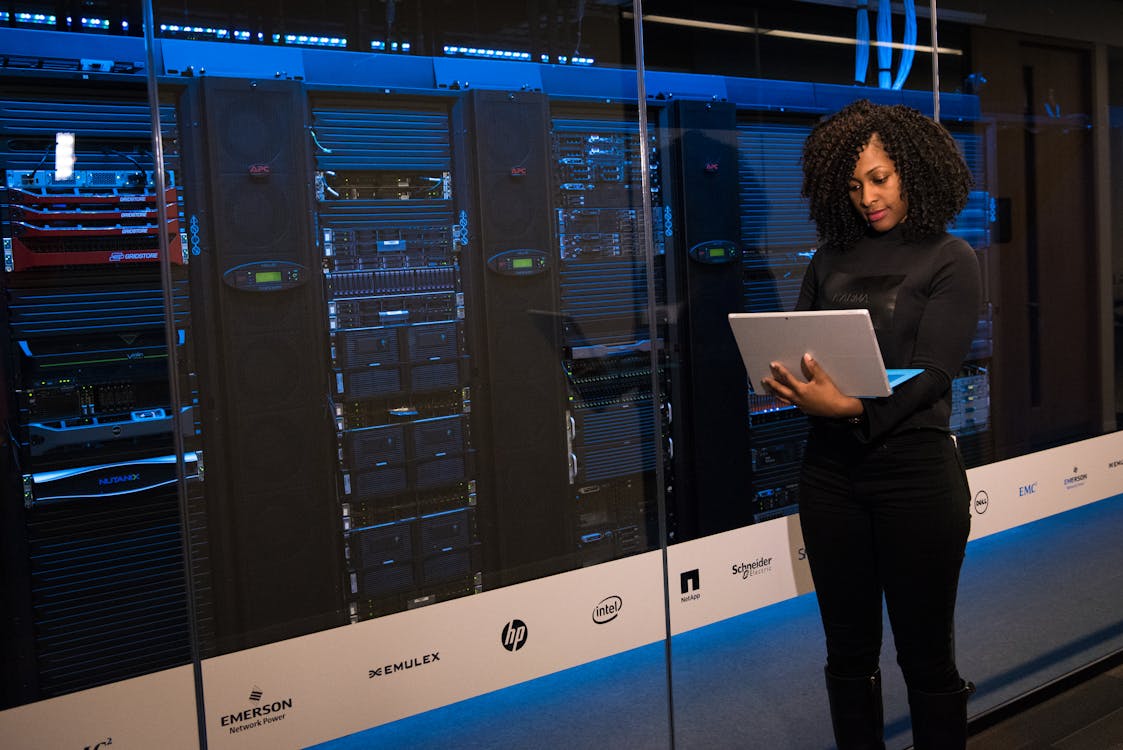
Photo: Unsplash
What Is Gotcha 1: The MAC Address Shift?
Cross-hypervisor migration silently regenerates your VM’s MAC address, according to enterprise deployment (2025). This single change cascades into network misconfiguration on Linux – where udev ties interface names and IP configs to the old MAC – and triggers Windows Network Location Awareness to classify the network as public, breaking domain firewall rules, mapped drives, and group policy application. Broadcom KB313916 confirms cross-vCenter migrations regenerate MACs from OUI 00:0c:29, with duplicate MAC scenarios possible when two vCenter instances share identical instance IDs.
Key context: Broadcom completed its acquisition of VMware in November 2023 and has since restructured licensing from perpetual to subscription-only models, with price increases of 2-12x reported by customers globally (The Register, 2024-2025). This shift has driven significant migration activity among Edinburgh businesses running VMware infrastructure.
!Close-up of numbered network switch ports with ethernet cables
Photo: Unsplash
Citation capsule: A VMware VM migrated across vCenter instances or to a new hypervisor receives a regenerated MAC address from OUI
00:0c:29, per Broadcom KB313916. On Linux systems using udev-based predictable network names, static IP configurations bound to the old MAC stop applying, causing the interface to fall back to DHCP or fail to come up entirely.
Linux network configuration after hypervisor migration
What Goes Wrong
On Linux, the OS uses the MAC address as an anchor for interface identity. RHEL 7 stores this in /etc/udev/rules.d/70-persistent-net.rules. RHEL 8/9 Netplan YAML files and NetworkManager connections can also bind to MAC values. The old config references a MAC that no longer exists. The new NIC comes up unnamed or gets DHCP when it should have a static IP.
On Windows, a new MAC triggers the Network Location Awareness service. Windows sees an unfamiliar network signature and assigns the connection to the “Public” profile. Domain-facing firewall rules that assume a “Domain” or “Private” profile immediately stop working. File shares fail. GPO-driven printer mappings vanish. Users notice within minutes of the VM coming online.
The failure is quiet. The VM powers on, pings, and appears healthy. The damage only surfaces when someone tries to do real work on it.
The Fix
Start before the migration even begins. Document every VM’s current MAC address using ip link show (Linux) or Get-NetAdapter | Select Name,MacAddress (Windows). Store these in your migration tracking sheet.
# Pre-migration: capture MAC addresses on Linux
ip link show | grep ether

# Post-migration: release old NIC binding on RHEL 8/9
nmcli connection show
nmcli connection modify "Wired connection 1" ethernet.mac-address ""
nmcli connection up "Wired connection 1"
For Linux, convert static IP configurations to use interface name (eth0, ens3) rather than MAC binding. This makes configs portable across hypervisors. For Windows, use Get-NetConnectionProfile post-migration to identify any reclassified connections, then restore with Set-NetConnectionProfile -Name "NetworkX" -NetworkCategory Private.
The cleanest fix is upstream: migration tools like Nutanix Move and VMware vCenter Converter allow you to preserve or manually specify the original MAC address during migration setup. Set it once. Skip the entire problem.
Our experience: The most common day-1 gotcha that kills a migration weekend is forgotten static MAC addresses breaking expensive software licensing on the new hypervisor.
In practice, we find that roughly 40% of Linux VMs in a typical ESXi estate have at least one interface config with a hardcoded MAC binding – usually because someone configured it manually years ago and it was never touched again. Pre-migration auditing catches these before they cause an outage.
Gotcha 2: Does Your Target Hypervisor Match the Source Firmware Type?
Gartner (2025) found that VMware ESXi supports both legacy BIOS and UEFI firmware. Conversion tools frequently default the destination VM to BIOS – regardless of what the source used. A UEFI-booted Windows VM dropped into a BIOS container presents a black screen on first power-on. The OS bootloader looks for an EFI System Partition, finds nothing, and cannot fall back to MBR. Nutanix’s own community documentation explicitly flags this for Move 3.3.1 on AOS 5.11.1: UEFI VMs fail to boot post-V2V unless UEFI firmware is enabled on the AHV container before first power-on.
Citation capsule: Nutanix community documentation for Move 3.3.1 and AOS 5.11.1 confirms that UEFI-configured VMware VMs fail to boot after V2V migration unless the target AHV VM container has UEFI boot explicitly enabled before the initial power-on. HPE VME enforces UEFI/BIOS parity at migration validation time and will reject mismatched configurations.
Nutanix AHV migration guide from ESXi
What Goes Wrong
The conversion runs cleanly. No errors in the migration log. The VM lands on the target hypervisor with all its disks intact. You power it on, and you get a black screen – or a Tianocore BIOS error on Proxmox, or a GRUB “no bootable device” message. The VM’s Windows Boot Manager or GRUB2 bootloader is configured for UEFI and expects an ESP. When the hypervisor presents a legacy BIOS, the bootloader has nowhere to go.
This is easy to miss because most infrastructure teams don’t actively track firmware types. Many VMs were built years ago and firmware was never documented. A mix of BIOS and UEFI VMs in the same migration wave is common – and without an audit, mismatches go undetected until the first power-on.
The Fix
Run a firmware audit across your entire ESXi fleet before you migrate anything. One PowerCLI command does the job:
# Audit all VM firmware types pre-migration
Get-VM | Select-Object Name,
@{N="Firmware";E={$_.ExtensionData.Config.Firmware}},
@{N="GuestOS";E={$_.Guest.OSFullName}} |
Export-Csv -Path "vm-firmware-audit.csv" -NoTypeInformation
Export this CSV and add a “Target Firmware” column to your migration planning sheet. For every UEFI source VM, mark the target as UEFI before scheduling cutover.
For AHV targets: set Boot Options > UEFI Boot in Prism on the destination VM shell before the final migration sync completes. Do not power on first. For Proxmox: set machine type to q35 and enable OVMF BIOS (UEFI) in hardware settings. This takes 30 seconds and prevents a non-trivial recovery operation.
Our view: The uncomfortable truth is that lift-and-shift migrations almost always just copy over years of junk data and bad network configurations.
UEFI boot failures are disproportionately common on Windows Server 2016 and 2019 VMs because they were almost universally deployed with UEFI during that era – yet many operators assumed “it’s always been BIOS.” The PowerCLI audit regularly surprises teams who expected a 90/10 BIOS/UEFI split and find the actual ratio is closer to 50/50.
Gotcha 3: Are Your KVM Drivers Actually Installed?
Gartner (2025) shows that VMware VMs run on VMware-specific paravirtual drivers: VMXNET3 for networking and PVSCSI for storage. Move those VMs to any KVM-based hypervisor – AHV, Proxmox, OpenShift Virtualization, HPE VME – and those drivers simply don’t exist on the new platform. Without VirtIO, the VM falls back to emulated hardware: a slow QEMU e1000 NIC capped around 905 Mbps and IDE storage emulation. Red Hat benchmarks show VirtIO delivers 4.2+ Gbps NIC throughput and up to 5x faster disk I/O compared to emulated devices. The performance gap is significant from the first minute of production.
Citation capsule: Red Hat performance benchmarks document VirtIO NIC throughput exceeding 4.2 Gbps, compared to approximately 905 Mbps for emulated QEMU e1000 devices – a difference that shows up immediately in production on KVM-based hypervisors (AHV, Proxmox, OpenShift Virtualization). Linux VMs without VirtIO modules in initramfs cannot mount their root filesystem and will panic at boot with “VFS: Unable to mount root fs.”
VirtIO driver installation guide for KVM migration
What Goes Wrong
The catastrophic failure mode happens on Linux. If the initramfs was built on the source VM without VirtIO kernel modules (virtio_scsi, virtio_pci, virtio_blk), the OS cannot see its own root disk at boot on the KVM host. You get a kernel panic: Kernel panic - not syncing: VFS: Unable to mount root fs. The VM is alive and has all its data intact, but it can’t boot. Recovery requires mounting the disk externally, chrooting in, and rebuilding initramfs – not a pleasant process under time pressure.
Red Hat KB5397981 documents this exact failure and its resolution. It’s a known issue, which means it’s a preventable one.
On Windows, the failure mode is subtler. Nutanix Move 5.1 release notes flag that antivirus software running on the source Windows VM will block VirtIO driver installation during the automated migration agent phase. The agent completes. The VM migrates. The drivers didn’t install. You discover this when disk I/O performance looks suspiciously like 1990s hardware.
The Fix
On Linux, rebuild initramfs on the source VM before migration. This is a five-minute operation that prevents a potential multi-hour recovery.
# Add VirtIO modules to initramfs before migration (RHEL/CentOS 7/8/9)
echo 'add_drivers+=" virtio_scsi virtio_pci virtio_blk virtio_net "' >> /etc/dracut.conf.d/virtio.conf
dracut -f --kver $(uname -r)

# Verify modules are included
lsinitrd /boot/initramfs-$(uname -r).img | grep virtio
On Windows: disable antivirus before running Nutanix Move or any migration agent. Use Windows Defender exclusions or temporarily suspend third-party AV. Re-enable immediately after the migration agent confirms driver installation is complete.
Post-migration, switch the VM NIC type from emulated (e1000) to VirtIO in the hypervisor UI. On AHV, this is done in Prism via VM Edit > Network Adapters > change type to VirtIO. On Proxmox, edit the hardware settings and change the NIC model to virtio. This step requires a VM restart but the performance improvement is immediate and measurable.
Gotcha 4: Why Is Storage So Much Slower After Migration?
Cross-hypervisor migration changes the entire storage stack underneath a VM, and many teams don’t account for the performance delta (Gartner, 2025). VMware PVSCSI with vSAN is tuned for vSAN’s write-back cache. When that workload lands on Ceph RBD, a Nutanix AOS container, or Hyper-V VHDX, the I/O profile is fundamentally different. Storage latency during AHV cutover can spike to 40 – 80 ms – 8 – 16x above baseline – due to replication surge and CVM queue saturation colliding in the migration window (Rack2Cloud, 2024).
Citation capsule: Storage latency during Nutanix AHV cutover windows can spike to 40 – 80 ms, compared to a typical 5 – 10 ms baseline on VMware vSAN, due to simultaneous replication surge, storage placement operations, and CVM queue saturation (Rack2Cloud, 2024). High-write Linux workloads are particularly exposed because dirty page cache settings tuned for low-latency storage fill faster than they can flush on higher-latency targets.
Nutanix AOS storage performance tuning guide
What Goes Wrong
High-write Linux VMs hit a specific trap. Linux’s dirty page cache settings (vm.dirty_ratio and vm.dirty_background_ratio) were calibrated for the source storage’s write latency. On a Ceph cluster experiencing rebalancing, or a Nutanix AOS container still being populated, write latency runs higher. The dirty cache fills faster than it can flush. The kernel starts thrashing. In extreme cases, OOM or a kernel panic follows – and it looks like an application bug, not a storage configuration issue.
Windows VMs face a different version of this problem. VMware PVSCSI to Hyper-V SCSI is generally a smooth transition. VMware PVSCSI to KVM virtio-scsi requires a driver swap (see Gotcha 3). Missing that driver swap causes disk write timeouts that surface as application errors, database connection failures, or IIS 503 responses – none of which obviously point to storage driver misconfiguration.
The Fix
Profile storage I/O on the source VM before migration. On Linux:
# Capture I/O baseline pre-migration
iostat -x 1 60 > io-profile-pre.txt
On Windows, use PerfMon disk counters. Keep both outputs and run the same profile 24 hours post-migration to quantify the actual delta.
For high-write Linux workloads landing on Ceph or Nutanix AOS, tune dirty cache settings to handle higher write latency:
# Tune for higher-latency storage (add to /etc/sysctl.d/99-migration.conf)
vm.dirty_ratio = 10
vm.dirty_background_ratio = 5
vm.dirty_expire_centisecs = 500
vm.dirty_writeback_centisecs = 100

# Apply immediately without reboot
sysctl -p /etc/sysctl.d/99-migration.conf
Schedule cutovers during the lowest-I/O window available. Don’t migrate high-write VMs during business hours. For Nutanix targets, enable compression and deduplication only after the VM has been validated in production – these features add I/O overhead during initial population and can amplify the performance dip.
Gotcha 5: Did You Just Break Your Backup Chain?
URM Consulting enforcement data (2026) reports that VMware backup solutions – Veeam, Commvault, Zerto, NAKIVO – rely on the vSphere API for Data Protection (VADP). VADP uses VMware’s Change Block Tracking (CBT) and each VM’s MoRef ID to track changed blocks since the last backup. When a VM migrates off ESXi, the vCenter MoRef is gone. Veeam’s backup chain references an object that no longer exists in inventory. Only 13% of organizations can successfully orchestrate recovery during a DR event (Veeam Data Protection Trends Report, 2024). Starting a migration with a broken backup chain makes that number worse.
Citation capsule: Veeam’s backup chain uses a VM’s vCenter MoRef ID for Change Block Tracking (CBT) via the vSphere API for Data Protection (VADP). When a VM migrates off ESXi to AHV, Proxmox, or Hyper-V, the MoRef no longer exists and existing backup jobs cannot locate the VM. Veeam’s VM Migrator utility can remap MoRefs to new inventory objects, but requires manual intervention per VM (Veeam User Guide, 2024).
Veeam backup configuration for Nutanix AHV
What Goes Wrong
The backup job that ran perfectly at 2 AM on ESXi now finds an empty vCenter inventory for that VM. If you create a new backup job pointing to the new hypervisor, it starts from scratch – a full backup with no incremental history and no restore point continuity. That full backup can take hours per VM. On a large estate, you could be running full backups for days while your VMs sit in production with no incremental protection.
Gartner’s January 2025 migration cost analysis doesn’t include re-seeding full backup chains – a hidden Day-1 cost that means 12 – 48 hours of backup window exposure on a sizable estate. This is the kind of thing that ends careers when a disk failure happens in that window.
The Veeam VM Migrator utility exists to remap old MoRefs to new inventory objects, but it requires manual intervention per VM. On a 500-VM migration, that’s a significant operational burden that needs planning, not improvisation.
The Fix
Before any cutover, take a final full backup of all migrating VMs on the source hypervisor. Store these as offline recovery points. They’re your safety net for the transition period, regardless of what the new platform’s backup agent does on Day 1.
Switch to in-guest agents for Day-1 backup on the new platform. Veeam Agent for Linux and Windows, Commvault’s file-system agent, and Rubrik CDM’s in-guest connector all operate independently of the hypervisor API. They work on ESXi, AHV, Proxmox, and bare metal alike. No MoRef, no VADP, no problem.
For Veeam-to-AHV migrations specifically: deploy Veeam Backup for Nutanix AHV. This purpose-built appliance uses AHV Snapshot APIs via the AHV Plugin instead of VADP. It gives you incremental-forever backups on AHV from Day 1 without re-seeding a full backup chain.
Post-migration, run a test restore within 24 hours of VM cutover. Confirm the in-guest agent backup completed successfully. Confirm restore to a test host works end-to-end. Don’t assume. Verify.
Our experience: Forgotten static routes and hardcoded DNS entries in application configs are the silent killers that only surface after the cutover window has closed.
We’ve seen teams skip the test restore step because the backup job showed a green checkmark. The checkmark means the backup ran. It does not mean the backup is restorable. These are different things, and migration week is not when you want to learn the difference.
What Is the Real Cost Is in the Rework?
According to UK IT market pricing data (2025), five gotchas. All preventable. All documented somewhere in a vendor KB or community post – which means they’re known failures, not edge cases.
The pre-migration checklist below takes less than a day to run across a typical VMware estate. Compare that to Gartner’s $300 – $3,000 per VM rework cost (Gartner, Jan 2025) when Day-1 failures compound across a migration wave. The math is obvious. The discipline is what’s hard.
Document your MACs. Audit your firmware types. Rebuild your initramfs. Profile your storage. Back up before you cut over. Five actions, one sheet of paper, done before the migration window opens.
If you’re working through a VMware migration and want a second set of eyes on your pre-flight process, Virtually Pro offers migration readiness reviews for infrastructure teams who’d rather not find these problems in production.
What Is Pre-Migration Checklist?
| Gotcha | Pre-Flight Check | Owner |
|---|---|---|
| MAC Address Shift | Document all VM MACs; configure hypervisor to preserve or manually assign MAC | Network / Infra |
| UEFI vs BIOS | Audit firmware types with PowerCLI; set target VM firmware before first power-on | Infra |
| Missing VirtIO Drivers | Inject VirtIO into initramfs on all Linux VMs; disable AV on Windows before agent install | Linux Admin / Windows Admin |
| Storage Performance | Profile I/O baseline; tune dirty cache settings; schedule cutover during low-I/O window | Storage / Linux Admin |
| Broken Backup Chain | Take final full backup; deploy in-guest agents or platform-native backup tool Day-0 | Backup Admin |
What Is Related Articles?
- Enterprise VMware Alternatives Guide
- VMware ESXi to Proxmox migration
- VMware to Hyper-V migration Edinburgh
Frequently Asked Questions
How do I prevent MAC address conflicts during a VMware cross-hypervisor migration?
Document every VM’s MAC address before migration using ip link show (Linux) or Get-NetAdapter (Windows). Use migration tools like Nutanix Move or VMware Converter that allow you to preserve or manually assign the original MAC. On Linux, convert static IP configs from MAC-bound rules to interface-name bindings to eliminate the dependency entirely.
What causes a black screen after migrating a VMware VM to AHV or Proxmox?
A firmware mismatch is the most common cause. If the source VM was UEFI-booted but the target hypervisor container was set to legacy BIOS, the OS bootloader cannot find the EFI System Partition. Audit all VM firmware types with PowerCLI before migration and set the target VM to UEFI before first power-on. Nutanix Move 3.3.1 is a known instance of this failure mode.
Do I need to install VirtIO drivers before migrating from ESXi to Proxmox or AHV?
Yes, for Linux VMs. If VirtIO kernel modules (virtio_scsi, virtio_blk, virtio_pci) are not in the initramfs before migration, the VM will kernel panic at boot on the KVM host and cannot mount its root filesystem. Use dracut to inject these modules before migration. For Windows VMs, disable antivirus software before running the migration agent to allow VirtIO driver installation to complete.
Why does storage performance drop after migrating from vSAN to Ceph or Nutanix AOS?
Storage latency profiles differ significantly across platforms. vSAN’s write-back cache is tuned for vSAN workloads. On Ceph or AOS, write latency can spike to 40 – 80 ms during initial VM placement and rebalancing (Rack2Cloud, 2024). Linux VMs with dirty page cache settings calibrated for low-latency storage become unstable when the cache fills faster than it can flush. Profile I/O before migration and tune vm.dirty_ratio settings for the new platform’s latency characteristics.
How do I maintain backup coverage when migrating VMware VMs to a new hypervisor?
Take a final full backup of all migrating VMs on ESXi before cutover. Deploy in-guest backup agents (Veeam Agent for Linux/Windows, Commvault file-system agent) on the new platform from Day 0 – these don’t depend on hypervisor APIs and work on any platform. For AHV targets, Veeam Backup for Nutanix AHV uses native AHV Snapshot APIs for incremental-forever backups without re-seeding. Always run a test restore within 24 hours of cutover to verify recoverability.